Actualité

Vaut-il la peine d’acheter un smartphone 5G ?
Si vous êtes propriétaire d’un smartphone 5G, vous pouvez profiter des hauts débits qu’il a à offrir. Non seulement votre appareil sera plus rapide, mais il…

Les mesures à prendre en cas de surchauffe de la carte graphique
La carte graphique est l’élément qui relie l’ordinateur et l’écran. Cela peut se faire de manière physique grâce à des connecteurs qu’elle possède : VGA, DVI,…

Jake Paul vs Andre August : comment regarder le matc de boxe ?
Dans le monde de la boxe, l’affrontement entre la vedette des réseaux sociaux Jake Paul et le boxeur aguerri Andre August suscite un intérêt croissant….
Bureautique



Hardware

Découvrir Eneba : fonctionnement et astuces pour acheter des jeux
Eneba s’érige rapidement comme une plateforme incontournable pour les amateurs de jeux vidéo. Ce marché numérique, à la fois vaste et accessible, offre une multitude…

Comment lire les messages bloqués sur samsung ?
Lorsque vous recevez des messages incessants de numéros que vous ne connaissez pas, vous pouvez les bloquer. Que vous utilisiez un Samsung ou un autre…

Spider-Man : dates de Spider-Verse sur Netflix et Disney+
L’univers cinématographique de Spider-Man continue de captiver les fans avec l’annonce récente de l’arrivée de ‘Spider-Verse’ sur les plateformes de streaming Netflix et Disney+. Alors…
Informatique

Coffre-fort numérique d’entreprise : sécurisez et archivez vos données
À l’ère du numérique, les entreprises font face à un afflux massif de données critiques nécessitant une gestion sécurisée. La mise en place d’un coffre-fort…
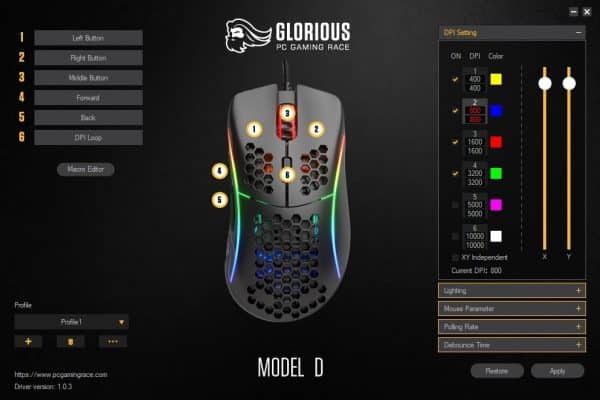
Qu’est-ce que le DPI pour une souris ?
Qu’ est-ce que le DPI ? DPI signifie points par pouce ou en termes de jeu, pixels par pouce. DPI détermine à quelle distance un curseur…
Comment connecter une souris sans fil Bluetooth Trust ?
Une souris Bluetooth peut être utile si vous ne voulez pas utiliser le pavé tactile de votre ordinateur portable. Mais certains utilisateurs ont signalé qu’ils…




Marketing




Sécurité


SEO

Comment mesurer l’efficacité de votre tremplin numérique pour le SEO
Dans un monde de plus en plus digitalisé, avoir une présence en ligne solide est la clé du succès pour de nombreuses entreprises. Le SEO,…

Comment changer l’ordre des photos sur Instagram ?
photo via @littledrill Des études montrent que l’utilisateur Instagram moyen manque 70% de ce qui se trouve dans leur alimentation. Aujourd’hui Instagram a annoncé qu’il…

L’importance d’une stratégie SEO efficace pour votre site web
Dans le système marketing numérique, le défi pour une entreprise est de mettre en avant son site en ligne. La visibilité est très importante pour…

Qu’est-ce qu’une étiquette de produit ?
La saison de football recommence aux États-Unis. Et comme beaucoup de fans le savent bien, si une équipe gagne ou non un match dépend de…