Actualité
Comment récuperer mes photos sur samsung cloud ?
Samsung Cloud permet de libérer l’espace de votre téléphone en stockant vos fichiers volumineux comme les photos ou vidéos dans le Cloud. Si vous utilisez Samsung,…

Safesearch activé : à quoi correspond ce message de google ?
Lorsque vous voyez le message « SafeSearch activé », cela signifie que le filtre de recherche SafeSearch est activé sur votre compte. Cette fonctionnalité de Google est…

-Guide d’achat : comment choisir le meilleur smartphone en 2023 ?
Les géants de la téléphonie mobile rivalisent sans relâche en matière d’efforts, de technologies et d’innovations pour concevoir des smartphones de pointe répondant aux attentes…
Bureautique


Hardware

Les 5 meilleurs outils de synthèse en ligne pour de meilleurs résumés
Dans le monde trépidant d’aujourd’hui, le besoin de condenser de longs textes en résumés concis est devenu de plus en plus répandu. Cette demande a…
Quelle est la différence entre Intel Pentium et Intel Core ?
J’ ai une question à propos d’un ordinateur portable que je vais avoir. L’un dit Intel Pentium, et l’autre dit Intel Core i3. La différence…
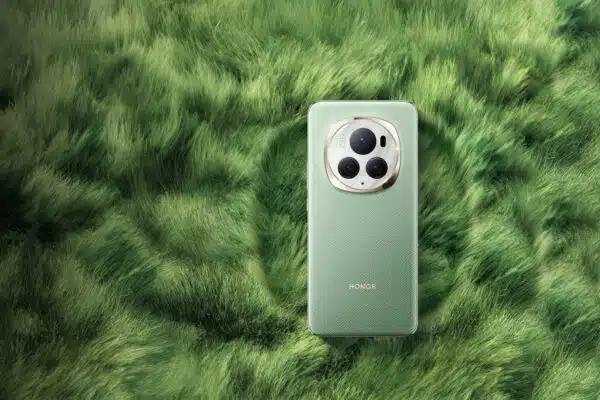
Honor Magic 5 Pro Vs Magic 6 Pro: quelles differences ?
Honor possède un portefeuille bien garni avec des smartphones aussi passionnants que performants si l’on ne cite que le tout nouveau Magic 6 Pro, qui…
Informatique
Quelle plateforme freelance pour débuter en informatique ?
Vous avez décidé de vous lancer en tant qu’indépendant et vous rêvez de décrocher votre première mission ? Pour trouver rapidement du travail, la plateforme…

Résoudre problème clé USB non détectée : causes et solutions efficaces
Lorsque vous insérez votre clé USB dans le port de votre ordinateur et rien ne se passe, la frustration peut être grande. Ce problème courant…

Comment utiliser un convertisseur d’heure décimal en ligne pour simplifier vos calculs
La conversion d’heures en format décimal est une tâche courante, surtout pour ceux qui gèrent les feuilles de temps ou la facturation. Cette conversion peut…
Internet




Marketing

Sécurité



SEO
Comment mesurer l’efficacité de votre tremplin numérique pour le SEO
Dans un monde de plus en plus digitalisé, avoir une présence en ligne solide est la clé du succès pour de nombreuses entreprises. Le SEO,…

Comment changer l’ordre des photos sur Instagram ?
photo via @littledrill Des études montrent que l’utilisateur Instagram moyen manque 70% de ce qui se trouve dans leur alimentation. Aujourd’hui Instagram a annoncé qu’il…
L’importance d’une stratégie SEO efficace pour votre site web
Dans le système marketing numérique, le défi pour une entreprise est de mettre en avant son site en ligne. La visibilité est très importante pour…
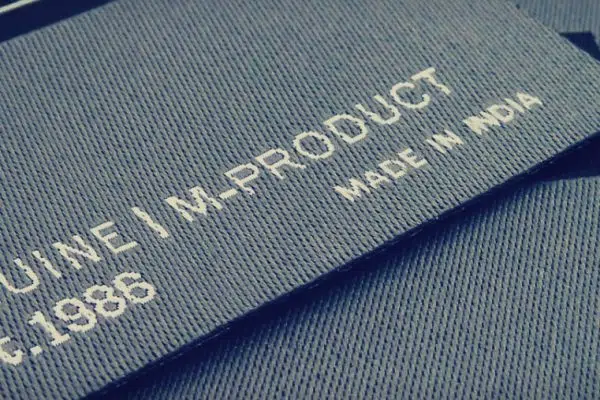
Qu’est-ce qu’une étiquette de produit ?
La saison de football recommence aux États-Unis. Et comme beaucoup de fans le savent bien, si une équipe gagne ou non un match dépend de…